onlybrain on the phone and in chat
What you need
- a Claude account (the Free plan is enough), or ChatGPT on a Business, Enterprise or Edu plan,
- an onlybrain account and access to a brain,
- the connector's name and address: in the brain on the Connect page, Phone tab, both with a Copy button. The name is the brain's name, the address belongs to this brain only.
On a phone, the Connect page opens right on the Phone tab. On a computer, it can be sent to the phone with a QR code.
Step by step
On claude.ai, open Customize in the left menu and Connectors at the top.
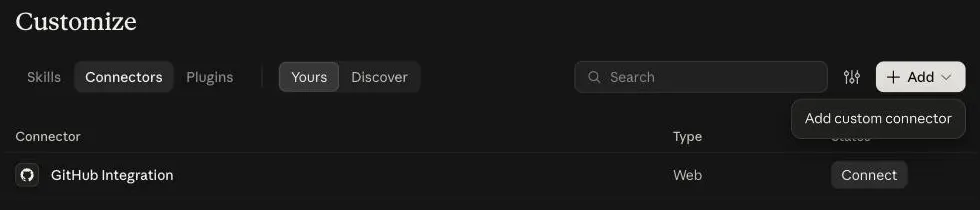
Top right, click + Add and pick Add custom connector.
Paste the name into Name and the address into MCP server URL. Then click Continue.
The name and the address are in the onlybrain app, on the brain's Connect page, each with a Copy button. 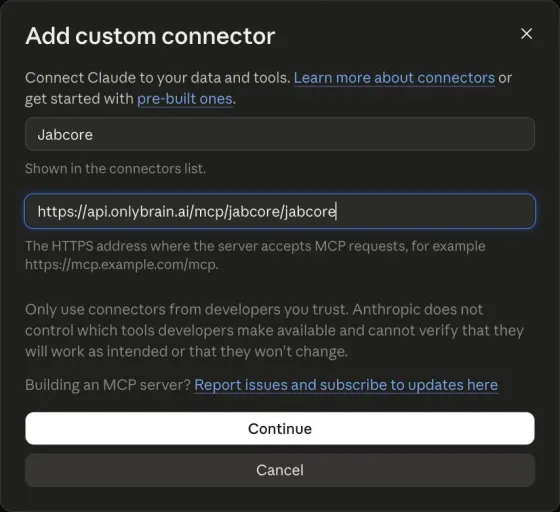
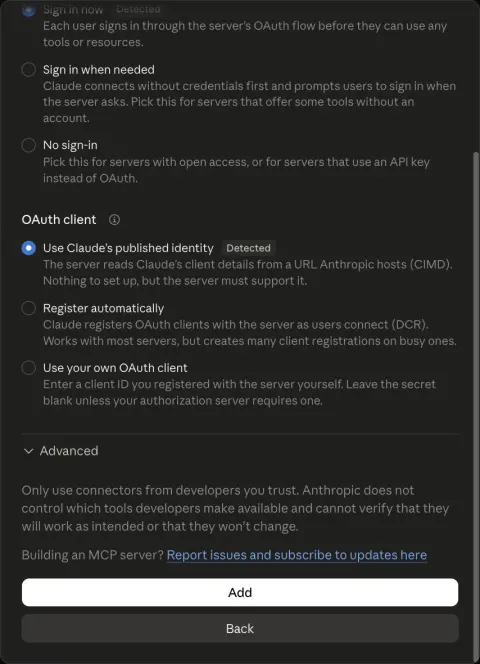
Claude detects the sign-in by itself (Sign in now and Use Claude's published identity). Change nothing and click Add.
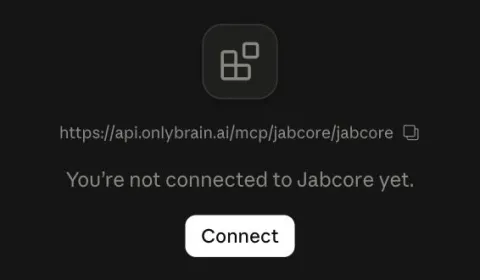
On the connector's page, click Connect.
onlybrain opens: sign in, check the brain and the role and click Allow.
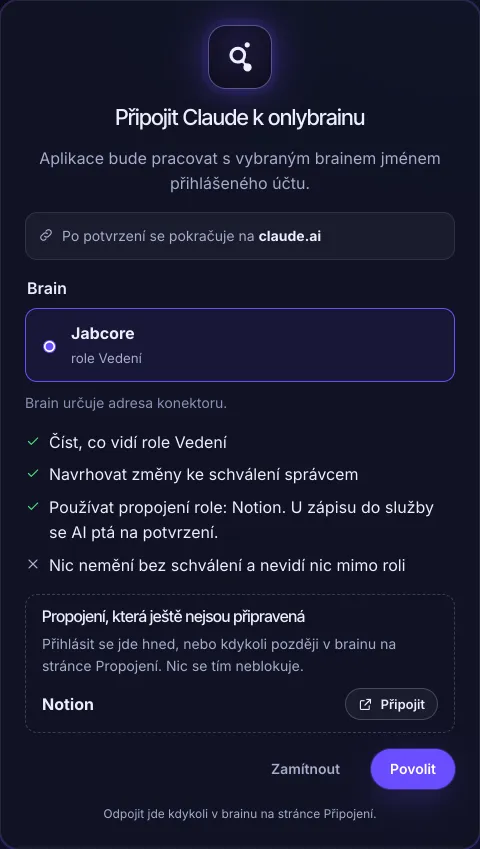
On the phone, sign in to the Claude app with the same account. The brain name connector is already there, nothing else to set up. In a chat it is turned on and off with + next to the message box.
Not working?
Claude says Couldn't check the server
The address is not exactly the one from onlybrain. Close the dialog with Cancel, copy the address again with the Copy button and paste it.
The sign-in does not open or ends with an error
Remove the connector and add it again on the web. The address must be exactly the one copied from onlybrain.
The connector is not on the phone
Sign out of the phone app and sign in with the same account as on the web. On a business plan the organization owner has to add it first.
Add custom connector is greyed out
The Free plan has one custom connector only. Remove the other one, or move to a paid plan.
The AI does not see a file
The role does not see it. Ask the brain's manager for access.
A saved note is not in the brain
It waits for a manager's approval, on the brain's Changes page.
Example questions
What's new in our brain in the last week? Name the files you know it from.Find the contract with ACME and tell me the notice period. Link to the page.How do we prepare an offer? Briefly in steps, with a source for each step.Save the notes from the meeting with client XY: we agreed on a demo next Thursday,
they want an offer for 10 licences. Save it where it belongs by the brain's rules.Who is in charge of invoicing here and where do I find the process?Skills and agents
The role's skills and agents work on the phone too, through the same connector. The list, marked Phone or Computer only, is in the brain on the Connect page.
- Skill: write a sentence with the skill's name. The AI loads its full text from the brain (the
get_skilltool) and follows it. If a skill needs a computer (a script or an Office library), the AI says so up front. The AI creates a Word document or a PowerPoint presentation on the phone too and saves it as a proposal. - Agent: address the agent by name. The AI loads its instructions (the
get_agenttool) and answers as the agent in the conversation. - Skills in Claude need Code execution and file creation turned on (Settings → Capabilities; on Team and Enterprise the organization owner controls it).
- If the app offers commands in the
/menu, the skill can be picked there too. On the phone this is still being verified.
Use the offer skill from the brain and walk me through it step by step.The Connect page also has a trial Plugin for Claude (Pro, Max, Team, Enterprise). It is not required, skills work through the connector alone.
What works on the phone and what doesn't yet
On the phone:
- ask anything in the brain the role sees, with links to the sources,
- find and read a document, a contract, a process,
- run a skill from the brain: the AI loads the steps and follows them (it says up front what needs a computer),
- call an agent: the AI follows its instructions in the conversation as a persona,
- save a note or minutes as a proposal a manager then approves,
- propose a change to an existing file, which a manager approves,
- approve or reject a proposed change right in the chat (managers and the role that approves; the AI asks first), in Claude a card with buttons may show up,
- change several files at once (say, rename a client everywhere) as one proposal, up to 50 files,
- create a Word document or a PowerPoint presentation from text or from a template in the brain, as a proposal,
- find a meeting, read its summary and transcript, and save an updated summary as a proposal (a recording cannot be uploaded from the chat: recordings go in on the Meetings page in the app, in the phone's browser too, see the guide How to record a call),
- use the role's connections (ClickUp, Gmail …) through the same connector, the AI asks before writing to a service,
- the AI knows the brain's rules (how to write, where things are).
Only on a computer for now:
- skills with a script or with an Office library on the computer (marked Computer only on the Connect page),
- several agents at once, or an agent as a separate helper in the background,
- changing more than 50 files at once,
- writing directly without approval,
- connections that run only on a computer (local programs),
- uploading a file through the chat (the connector carries only text): a photo, PDF or recording can be uploaded in onlybrain in the phone's browser, in the brain under Overview → Upload a file, a meeting recording under Meetings,
- working offline.
Connections that need your own account (e.g. Gmail) can be connected right when signing in to onlybrain, or at any time in the brain on the Connections page.
Quick things from the phone, big work on a computer. With Claude Code, a session on your own computer can be driven from the phone through Remote Control.
onlybrain on the phone's home screen
The onlybrain app (the brain's overview, files, meetings, approving proposals) can be added to the phone's home screen. It then opens from the onlybrain icon as an app of its own, without the browser's bars.
- iPhone and iPad: in Safari, open app.onlybrain.ai, tap Share and choose Add to Home Screen.
- Android: in Chrome, open app.onlybrain.ai, in the ⋮ menu choose Install app (on some phones Add to Home screen).
The first time it opens from the home screen, it may ask to sign in, with the same account as on the web. Without internet the app says it is offline and loads again once the connection is back. When a new version comes out, the app offers Reload.
Disconnecting
In the brain, Connect → Phone lists the connected apps. Disconnect applies right away: the next question fails and the AI asks to sign in again. The brain manager also sees there who in the team has the connector connected.